 Peko Pal
Help & Guide
About Peko Pal
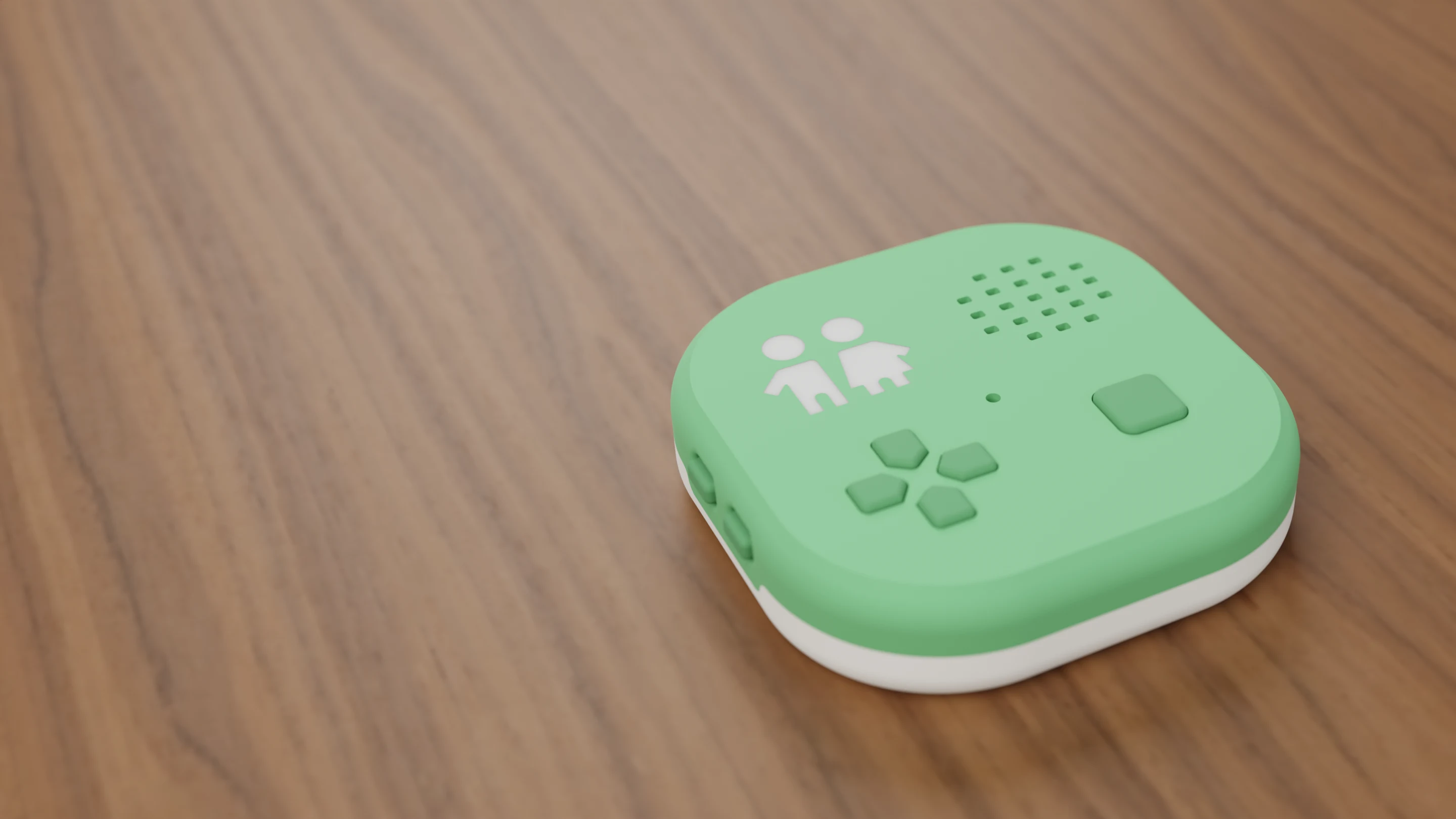 What is Peko Pal?
What Peko Pal is, what a child can do with it, what ages it suits, and what you need to use one.
 Is Peko Pal safe for kids?
How Peko Pal handles the microphone, who your child can talk to, what is saved from conversations and for how long, and what parents control.
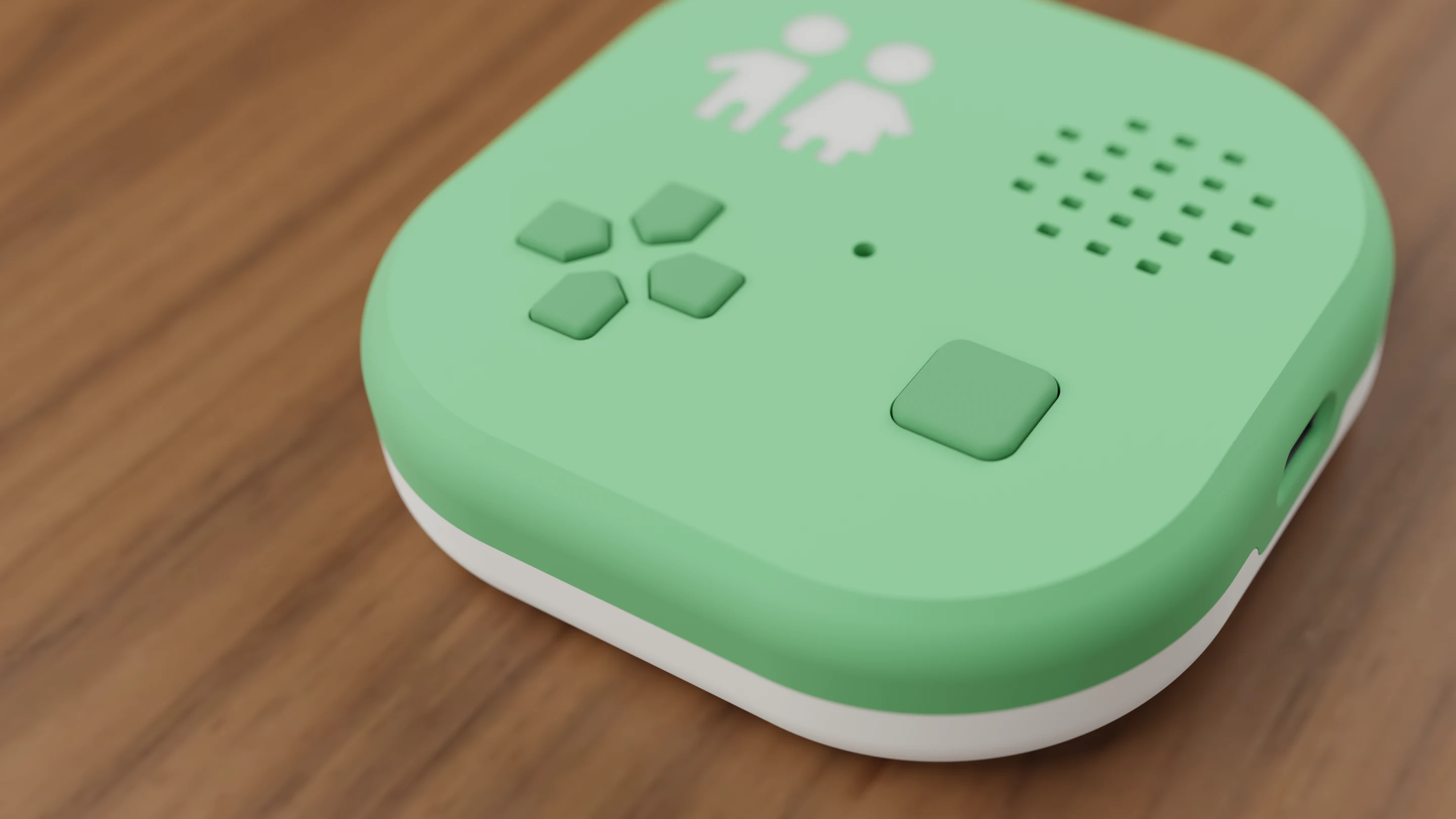 How Peko Pal's AI works
What the AI on Peko Pal does, how a child uses it, and the settings parents use to steer it, limit it and review it.
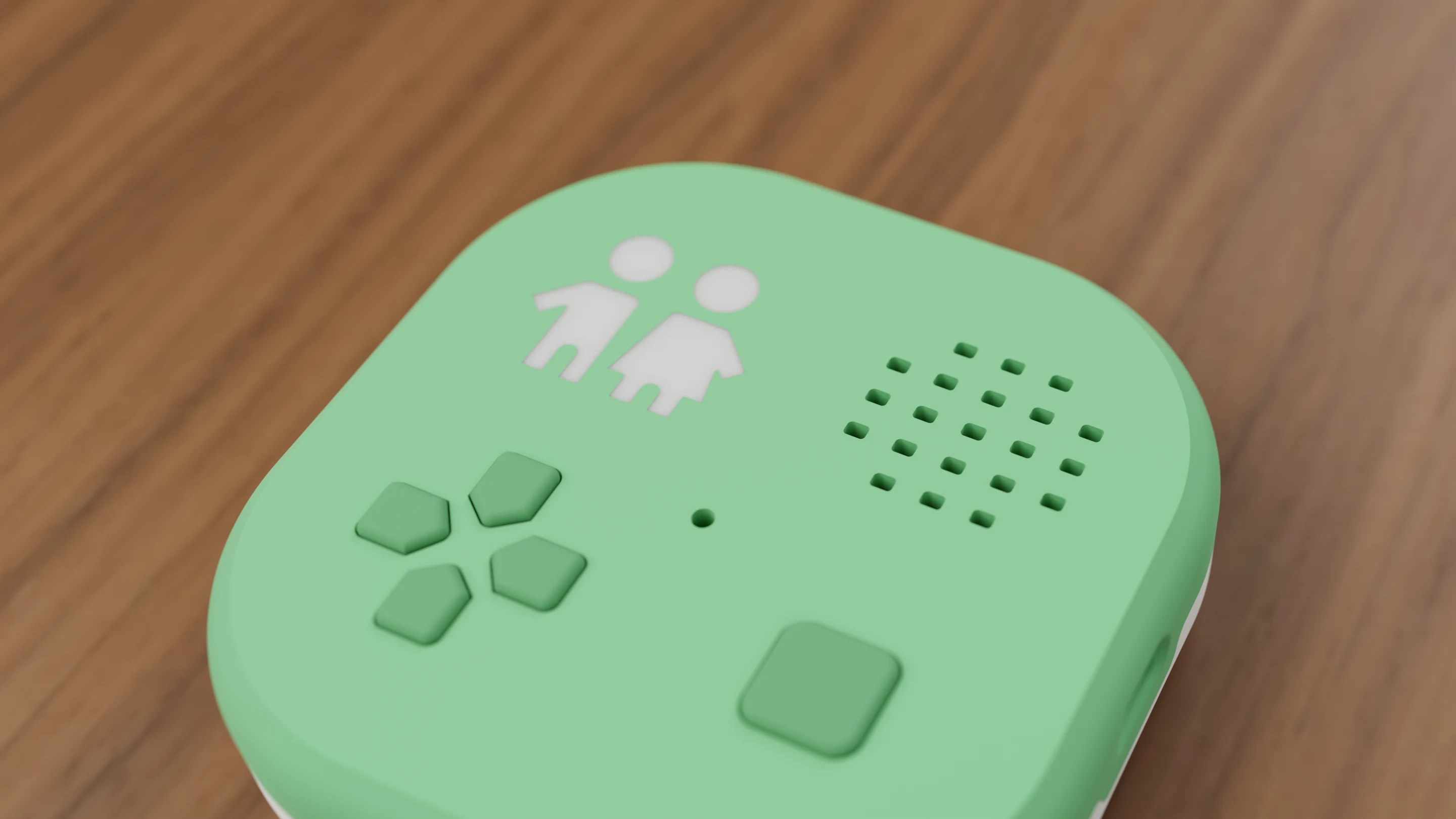 Peko Pal vs a phone or tablet
How Peko Pal differs from giving a child a phone or tablet - no screen, approved contacts only, optional AI with parent rules, and no ads.
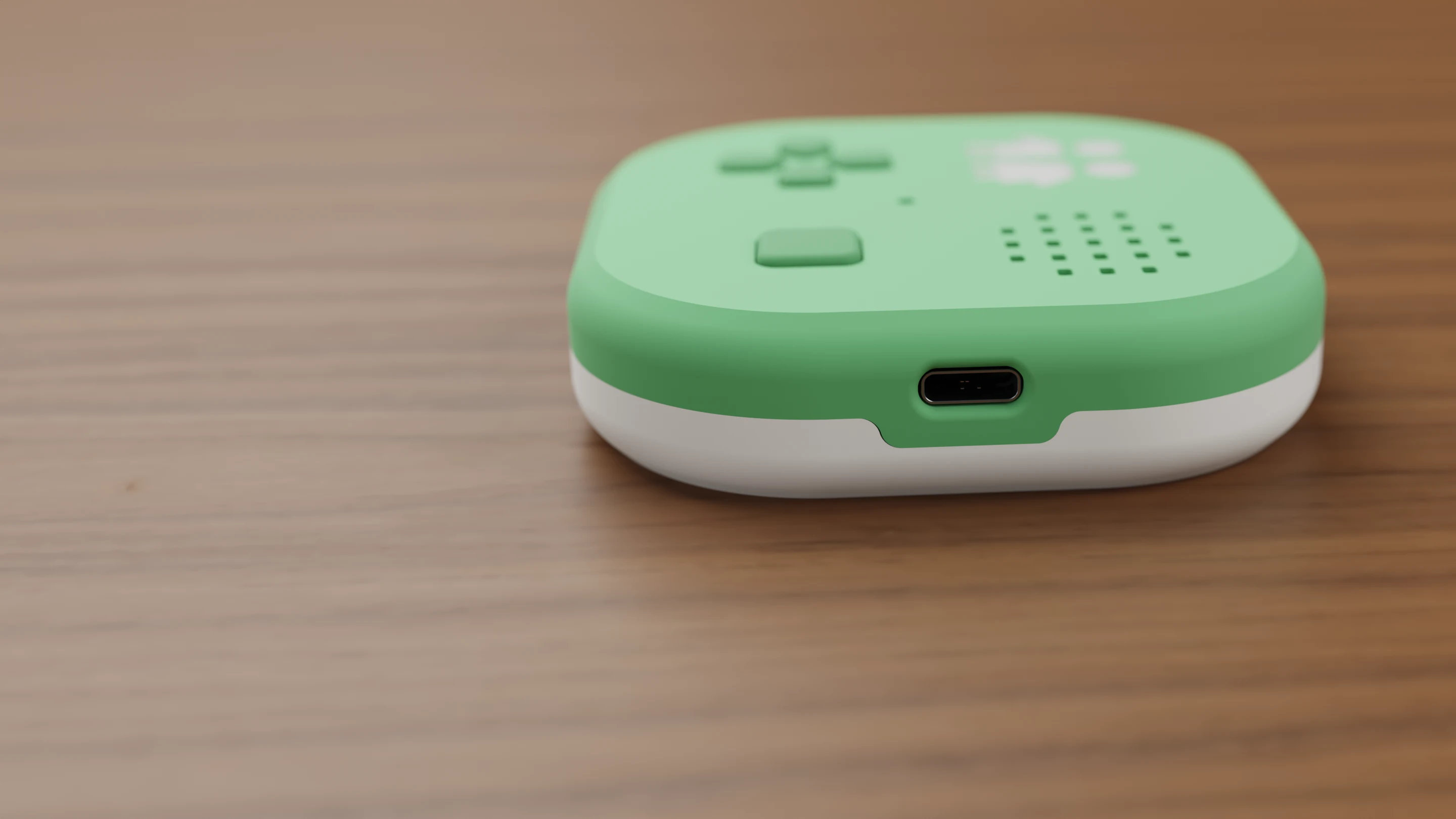 Does Peko Pal work with Android?
Peko Pal's parent app is iPhone-only for now. What you need to set up and use a Peko Pal, and what the device does on its own day to day.
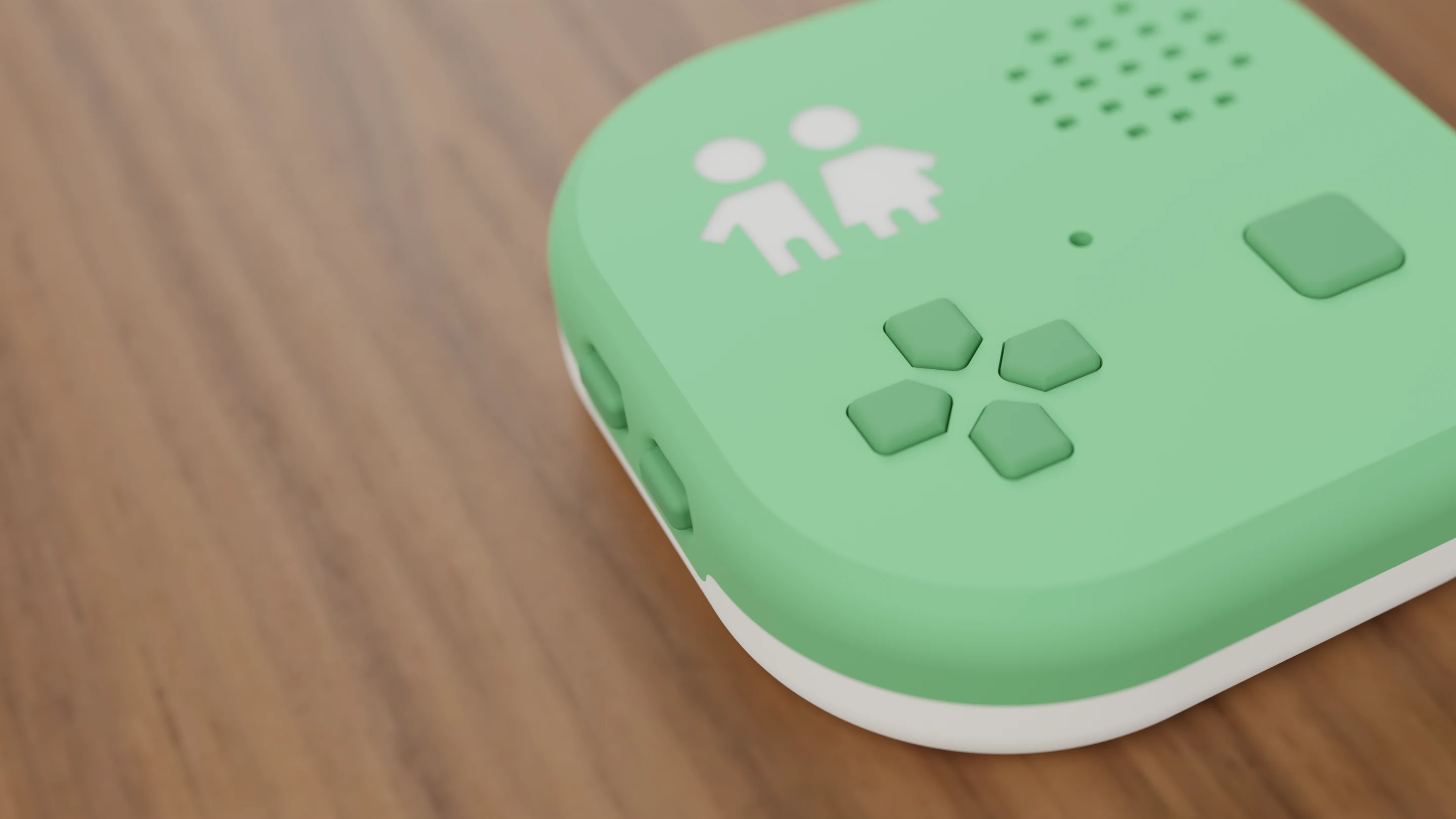 Can my child call and message friends without a phone?
How a child talks to friends on a Peko Pal with no phone of their own, using voice messages with friends parents approve, and what calls need.
- Is AI safe for kids? What parents should look for
A checklist for parents judging any AI for children, and how Peko Pal answers each one, from the microphone and the rules to the contacts and what is saved.
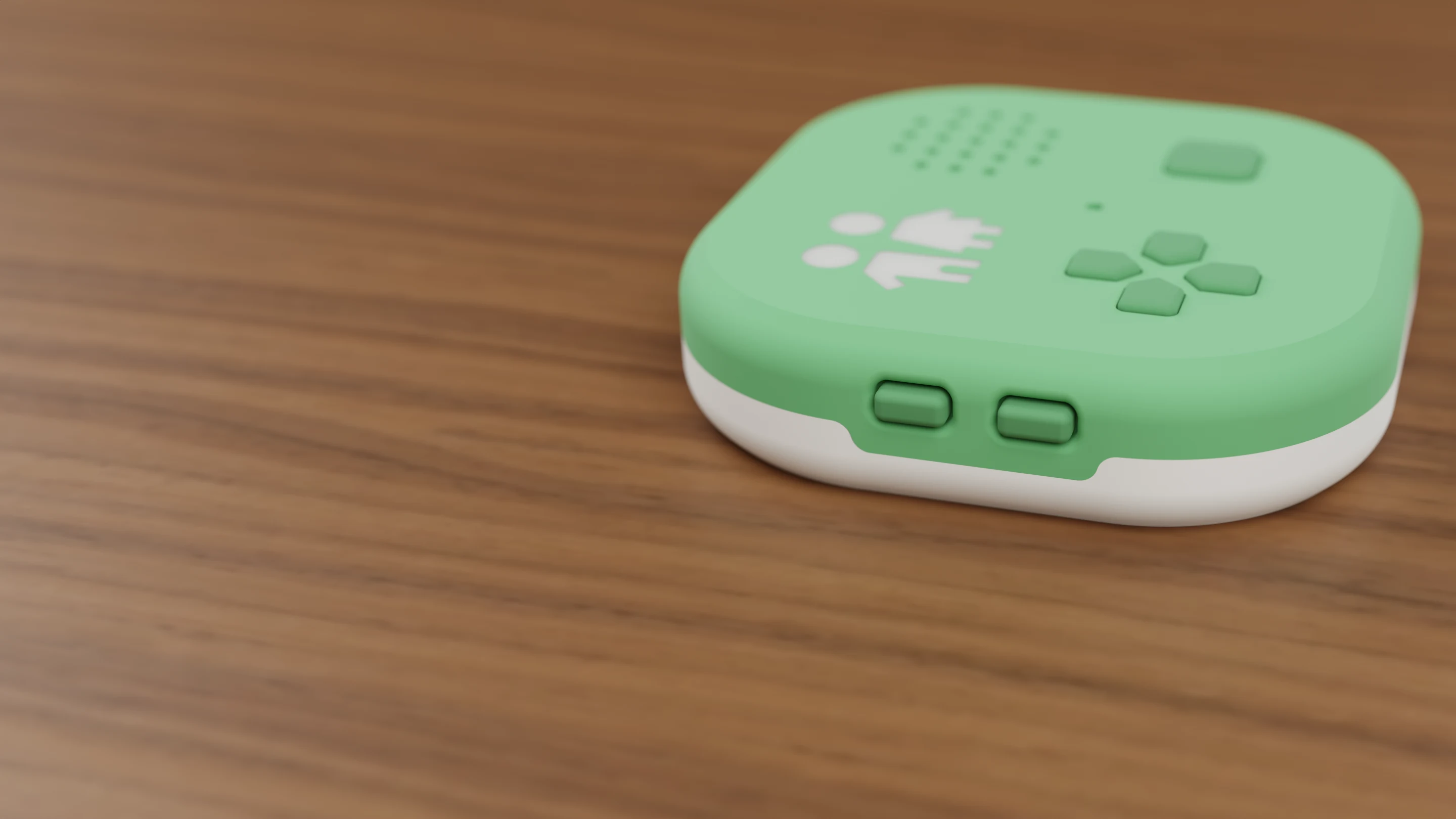 Screen-free stories, podcasts and radio for kids
How a Peko Pal plays stories, podcasts and radio for children with no screen, what plays without Wi-Fi, and how parents choose what's on it.
- Can my child learn from an AI tutor without a screen?
Yes. Lessons on Peko Pal is a spoken tutor. You give it a topic and a goal, it finds your child's level by asking, and you see their progress in the parent app.
- Is there a walkie-talkie for kids that works without the internet?
Peko Pal has a built-in walkie-talkie. Nearby Peko Pals talk directly to each other on four channels with no Wi-Fi or internet, and nothing is recorded.
- What is a "first device before the phone"?
A first device gives a child a little independence and a way to stay close to the people they love, before a phone and without a screen, while parents keep the guardrails. Here is what that means on Peko Pal.
Getting Started
 Meet your Peko Pal
What a Peko Pal is, what it can do, and how this guide works.
 Use Peko Pal without a device
How your child can chat with friends who own a Peko Pal using only the Peko Pal app, what still needs a Peko Pal, and how adding one later keeps their friends.
 Set up your Peko Pal
Pairing a new Peko Pal with the app - turning it on, pairing mode, connecting to Wi-Fi, and what happens next.
 Connecting your Peko Pal to WiFi
How to get your Peko Pal online, what it does day to day, and how to fix common WiFi problems.
 Friends and voice messages
How friends get approved, how your child sends and hears voice messages, and what calls need.
Using Your Peko Pal
 Getting around your Peko Pal
How the buttons work — choosing an app, moving around inside it, and turning the device on and off.
 Volume and brightness
Turning the sound up and down, the ceiling you set as a parent, and how bright the logo gets.
 What the glowing logo means
The light on the front is how a screenless device tells you what it's doing — here's the whole vocabulary.
 Apps — what's on your Peko Pal, and adding more
How apps get onto the device, where your child finds them, and how to add or remove them.
 Power, battery and charging
Turning it on and off, how the battery behaves, when it sleeps, how it checks for messages while off, and how to charge it.
- Choosing a conversation level for your child
What the five conversation levels (Little, Growing, Big kid, Teen, Adult) are, how Peko's way of talking and making things changes with them, and how to change one.
 Peko Packs
What Peko Packs are, how to add a whole pack of apps, stories and radio stations to a Pal in one tap, and opening a pack from a link or QR code.
 Pictures your child makes with Peko
Your child can ask Peko to make any picture, like a coloring sheet, a calendar or a scene, and print it. How pictures are made, the safety settings you control, and how to see or delete them.
 Printing from your Peko Pal
How your child can print on your home printer with the Printables app or by asking Peko, which printers work, how to ask for a paper size, and what to do if nothing prints.
Apps & Features
 Recorder
How to record your voice with Recorder, hear it back, flip through saved recordings with up and down, and play them in silly voices with left and right.
 Lessons — teaching your child at their level
Give Peko a topic and a goal, and it works out what your child already understands before it teaches anything. Here's how to set one up and how to read their progress.
 Glowlight
How to use the Glowlight app — its seven light modes, changing brightness, turning the light off and on, and what it remembers.
 Night Mode
How to use Night Mode, the bedtime nightlight with soft white or brown noise, including what each button does and how to change the light color and sound.
 Peko Bot
How your child talks with Peko Bot using the action button, what the status light shows while it listens and answers, and what parents can see afterwards.
 Podcasts
How to play, pause, skip and rewind episodes in the Podcasts app, how it remembers where your child stopped, and how a parent picks which episodes are on the device.
 Printables
How the Printables app on the Pal works — browsing pages with up and down, printing with the action button, what it says while printing, and how a parent chooses which printables are on the Pal.
 Pumpkin Candle
How to use Pumpkin Candle: its five spooky stories, pausing a story, picking a story and changing the light color.
 Radio
How to use the Radio app on the Pal — playing and pausing a station, browsing stations with up and down, what it announces, and how a parent chooses the station lineup.
 How to Use Peko
How the spoken walkthrough app works — what its eleven topics cover, how to move between them, replay one, and when it opens by itself.
Privacy & Safety
 Reading your child's conversations with Peko
Peko saves a written transcript of every conversation your child has with it. Here's where to read them, what is and isn't saved, and how long they're kept.
Troubleshooting
 Looking after your Peko Pal
Keeping it in one piece, the memory card, and what to do when it stops responding.
 Unpairing a Peko Pal, or if one is lost
What unpairing deletes, what it keeps, and how a lost Pal erases itself.